
If you’ve searched “it process automation,” you’re probably drowning in manual tickets, password resets, and onboarding checklists that eat your whole week.
This guide gives you a realistic 30-day plan, six real examples you can copy, and the exact mistakes that make most beginners quit by week two. No vendor pitch, no fluff just what actually works for a small team with limited time and budget.
What Is IT Process Automation? (And What It Isn’t)
IT process automation means using software to handle repetitive tasks — the kind of manual processes that follow the same rule-based workflows every single time. Think password resets, server monitoring, or sending the same onboarding email to every new hire.
It’s not magic. It’s software watching for a trigger, then following a set of steps a human used to do by hand.
IT Process Automation vs RPA vs Workflow Automation vs BPA
These terms get thrown around like they’re interchangeable. They’re not.
- Robotic process automation (RPA) usually refers to bots that mimic clicks and keystrokes inside existing software — useful for legacy systems with no API.
- Workflow automation is broader — it covers any multi-step process, not just IT-specific ones.
- Business process automation (BPA) sits at the company level — think invoicing or HR approvals, not server patches.
- IT process automation sits specifically inside IT operations: infrastructure, access, tickets, and systems.
| Term | Scope | Typical Use Case | Example Tool |
| IT Process Automation | IT operations specifically | Ticket triage, provisioning, patching | NinjaOne, Ansible |
| RPA | Mimics human clicks/keystrokes | Legacy systems with no API | UiPath |
| Workflow Automation | Any multi-step process | Approvals, notifications | Zapier, Power Automate |
| BPA | Company-wide business processes | Invoicing, HR approvals | Workato |
Where ITSM and ITIL Fit In
ITSM (IT Service Management) is the discipline of managing IT as a service — tickets, requests, incidents. The ITIL framework is the most widely used set of rules for doing that well. IT process automation is often what makes ITSM practical instead of theoretical: it’s the engine running underneath the ITIL process.
Why 30 Days? The Beginner’s Timeframe Problem
Most guides tell you to “start small” without saying how small, or for how long. That vagueness is exactly why so many automation attempts stall — teams try to automate five processes at once, hit friction on all five, and abandon the project by week three.
Why Most Beginners Try to Automate Everything at Once (and Fail)
A pilot program only works if it’s actually small. One process. One team. One measurable outcome. A phased rollout beats a big-bang launch almost every time, because it gives you room to fix mistakes before they touch your whole IT infrastructure. Skipping proper change management — not telling anyone what’s changing or why — is the single fastest way to get a project killed by your own team.
How IT Process Automation Actually Works
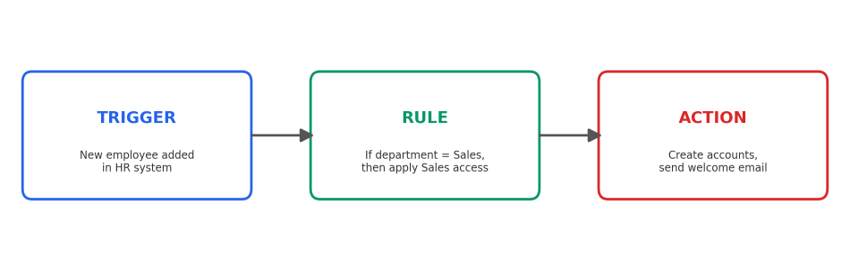
Strip away the marketing language and it comes down to three parts: a trigger, a rule, and an action.
Triggers, Rules, and Actions — The Core Mechanics
- Trigger: something happens (a new employee is added, a disk hits 90% capacity).
- Rule: the condition that decides what happens next.
- Action: the automated response (create accounts, send an alert, restart a service).
This is automation workflow design in its simplest form. Add integration between systems (via APIs), layer in alerts and notifications, and you’ve got a working pipeline — not a black box.
6 Real IT Process Automation Examples Beginners Can Copy
These aren’t hypothetical. They’re the six most common starting points for small IT teams.
1. Employee Onboarding/Offboarding
Automatically create or disable accounts in Active Directory the moment HR marks someone as hired or terminated. This alone eliminates one of the most common security gaps in small companies — the ex-employee who still has system access weeks later.
2. Password Resets and Ticket Triage
Self-service password resets and rule-based ticket triage can cut helpdesk volume by a third without hiring anyone.
3. Patch and Update Management
Scheduled patch management closes security holes automatically instead of relying on someone remembering to run updates.
4. Server and Network Monitoring
Server monitoring tools flag problems before users notice them — often before an outage even starts.
5. Configuration Management
Keeping system settings consistent across machines used to mean a spreadsheet and a lot of hoping. Configuration management tools now do this automatically.
6. Robotic Process Automation in Healthcare
One of the fastest-growing real-world applications right now is robotic process automation in healthcare — automating patient intake forms, insurance claims processing, and appointment scheduling. It’s a strong example of IT process automation principles applied outside a typical office environment, and it shows the same core idea works well beyond corporate IT.
The 30-Day Plan: Week-by-Week
This is the part most guides skip. Here’s an actual calendar.
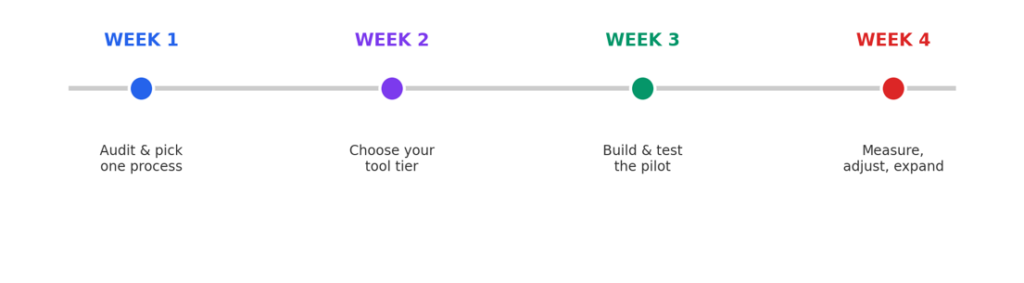
| Week | Focus | Deliverable |
| Week 1 | Audit and pick one process | A single documented workflow, chosen for impact and simplicity |
| Week 2 | Choose your tool tier | Free, low-code, or enterprise — matched to your actual team size |
| Week 3 | Build and test the pilot | A working automation, tested on a small user group |
| Week 4 | Measure, adjust, expand | Real numbers on time saved, plus a second process queued up |
Week 1 — Audit and Pick One Process
Don’t automate the most complex process first. Pick the one that happens most often and causes the most complaints — usually onboarding or password resets.
Week 2 — Choose Your Tool Tier (Free, Low-Code, Enterprise)
Match the tool to your team size, not your ambitions. More on this below.
Week 3 — Build and Test the Pilot
Test with five users before rolling out to fifty. This is where most dashboard/reporting visibility gets built in you want to see what’s happening, not guess.
Week 4 — Measure, Adjust, Expand
Look at real time saved, not projected time saved. Then pick process number two.
Which Tools Fit a Small Team (Not an Enterprise Comparison)
Most articles compare enterprise platforms as if every reader has a dedicated automation budget. Most don’t.
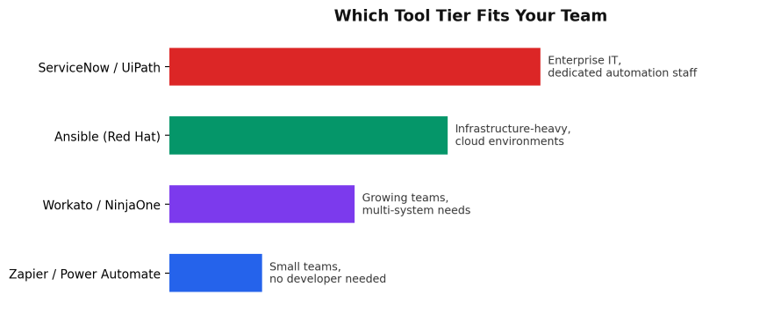
Match the tool tier to your team size before you buy anything.
- Free/low-budget: Zapier and Microsoft Power Automate handle basic low-code/no-code automations without a developer.
- Mid-tier: Workato and NinjaOne bridge more systems and add monitoring.
- Infrastructure-heavy: Ansible (Red Hat) works well if you’re automating server configuration across cloud infrastructure like AWS or Azure.
- Enterprise: ServiceNow and UiPath are built for large IT departments with dedicated automation teams and big IT process automation software budgets.
When You Need Enterprise Tools (ServiceNow, UiPath) vs When You Don’t
If you have fewer than 50 employees and no dedicated automation hire, skip enterprise IT process automation tools entirely for now. They’re built to solve problems you don’t have yet, and the learning curve alone can eat your first 30 days.
Real Example: A Small IT Team’s 30-Day Rollout
A 12-person managed IT provider automated new-client onboarding — account creation, device provisioning, and welcome documentation — in exactly the structure above. Week 1: they picked onboarding because it took 90 minutes per client, done manually, every time. Week 3: their pilot cut that to 12 minutes. Week 4: they measured a real operational efficiency gain and calculated the automation ROI — the tool paid for itself in the second month, purely from reduced staff hours and near-zero human error reduction in account setup.
Mistakes That Derail a 30-Day Rollout (And When They Happen)
Generic “avoid poor planning” advice doesn’t help. Here’s when things actually go wrong.
- Week 1 mistake: Picking a process tied to a legacy system with no API — you’ll burn your whole first week just figuring out if automation is even possible.
- Week 1 mistake: No SLA or success metric defined before you start, so week 4 has nothing to measure against.
- Week 2 mistake: Signing a contract with vendor lock-in clauses before testing a free tier.
- Week 2 mistake: Ignoring compliance and security requirements for the specific data the automation will touch.
- Week 3 mistake: Testing on production data instead of a small, controlled group.
- Week 3 mistake: No rollback plan if the pilot breaks something mid-test.
- Week 4 mistake: Declaring success without real numbers — “it feels faster” isn’t a metric.
Benefits and Risks You’ll See After 30 Days
Benefits:
- Real cost savings from reduced manual labor hours.
- Scalability the same automation works whether you have 10 users or 500.
- Fewer errors in repetitive tasks like access provisioning.
Risks:
- Over-automating before your team trusts the system.
- Compliance and security gaps if automations aren’t audited regularly.
- Underestimating setup time, especially with older infrastructure.
Realistically, small teams following this structure report meaningful time savings within the first month — not company-wide transformation, but a genuine, measurable dent in manual workload.
What Comes After Day 30
Once your first automation is stable, the next step is usually AIOps — using AI to detect and respond to IT issues before a human even sees an alert. This is where digital transformation stops being a buzzword and starts being an actual roadmap: one automated process becomes five, then becomes a system that mostly runs itself.
For a deeper look at picking the right starting tool, see our guide to low-code automation platforms for small teams and our breakdown of AI-powered workflow automation.
For the underlying service management standards referenced above, see ITIL’s official framework overview and Gartner’s IT process automation glossary.
Frequently Asked Questions
How does automation help with broader economic disruptions?
Beyond individual companies, automation plays a role in economic resilience more generally — helping organizations keep operations running during labor shortages or sudden demand shifts by reducing dependence on manual staffing for repetitive tasks.
What is IT process automation, in one sentence?
It’s software that runs repetitive, rule-based IT tasks — like account creation or patching — without a person doing each step manually.
How long does it take to see results?
Following a focused, single-process pilot, most small teams see measurable time savings within 30 days not months.
Do I need a developer to get started?
No. Low-code/no-code tools like Zapier and Microsoft Power Automate are built for non-developers to automate the first one or two processes.
Where This Leaves You
You don’t need an enterprise budget or a dedicated automation team to get real results in 30 days. You need one process, one realistic tool, and a plan that doesn’t try to fix everything at once. Pick your process this week not next quarter and start Week 1 today.
Not sure where to start, or want a second opinion on your first pilot process? Contact our team and we’ll help you map out your first 30-day automation plan.

5 Comments
Pingback: Voicemail Transcription: 3 Free AI Methods
Pingback: Micro1 AI Interview: 5 Mistakes That Kill Your Chances
Pingback: Business Automation AI: 7 Workflows That Actually Pay Off
Pingback: n8n vs Activepieces Complete Guide to Picking the Right Tool
Pingback: AI and Automation for Small Business: 7 Quick Wins