
Visual Studio 2026: 4 Layout Fixes After Upgrade
Upgrading to Visual Studio 2026 leaves many developers staring at a rearranged workspace. The Fluent UI redesign moved tool windows, document tabs, and panels that felt automatic in Visual Studio 2022. You open a solution, reach for Solution Explorer or the Error List, and nothing sits where muscle memory expects. This guide shows the exact four fixes that restore order, explains why the layout shifted, and gives you the practical steps so you can stop fighting the IDE and start using the new AI features.
After reading you will know how to reset the window layout in Visual Studio 2026, save a custom arrangement, and avoid the most common post-upgrade frustration. Everything here is based on the current Stable and Insiders builds as of September 2026.
Why the Layout Changed in Visual Studio 2026
Microsoft rebuilt the shell around the Fluent design system. That change brought tinted themes, cleaner spacing, and better high-DPI support, but it also reset many default panel positions. Developers who imported settings from Visual Studio 2022 often find their carefully arranged tool windows scattered. The rise in searches for visual studio reset layout is the direct result.
Microsoft documents the design changes in the Fluent UI overview for Visual Studio.
The good news: the fix is still one menu command, and the new layout system is more flexible once you understand it.
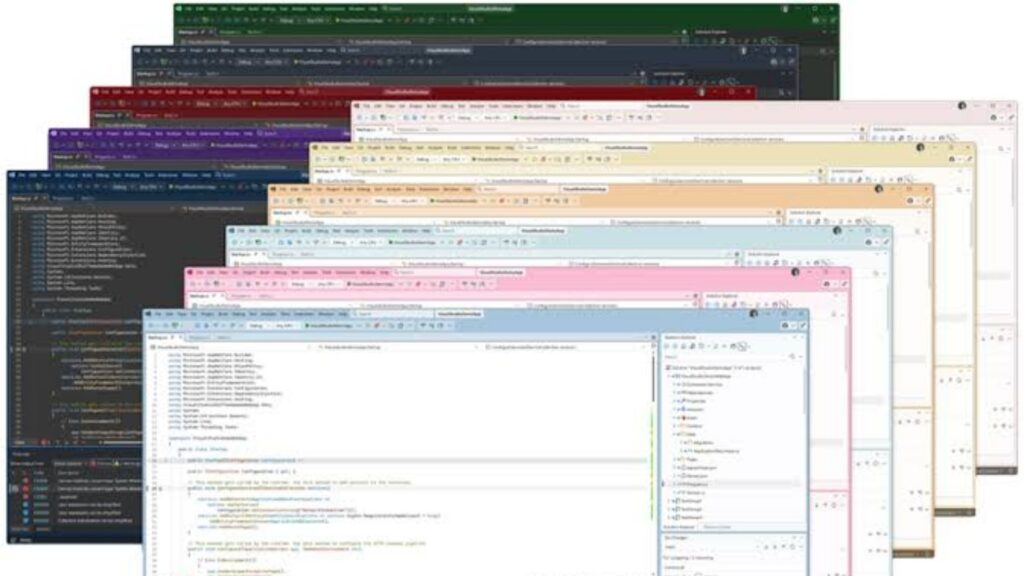
Fix 1: The One-Click Window Layout Reset
Open Visual Studio 2026.
Go to Window > Reset Window Layout.
Confirm the dialog. Every tool window, document group, and toolbar snaps back to the current default arrangement for your edition and channel.
This is the fastest way to stop the confusion. It works on both the Stable Channel and Visual Studio 2026 Insiders. Many developers run it once after the first upgrade and then never need it again.
You can also confirm the latest layout behavior in the official Visual Studio 2026 release notes.
If you had a complex multi-monitor setup in Visual Studio 2022, note that the reset applies only to the current display configuration. Dual-monitor users may need to re-dock windows manually after the reset.
Fix 2: Save Your Own Layout Before You Experiment
Before you start dragging panels again, capture a clean baseline.
- Arrange the windows the way you want (Solution Explorer on the right, Output and Error List at the bottom, for example).
- Go to Window > Save Window Layout.
- Give it a clear name such as “Daily Coding” or “Debugging”.
You can now switch between saved layouts with Window > Apply Window Layout. This is especially useful when you move between coding, debugging, and reviewing pull requests without checkout.
The Fluent design system made these saved layouts more reliable across high-DPI and multi-monitor setups than they were in earlier versions.
Fix 3:Restore Specific Tool Windows That Disappeared
Sometimes a single window vanishes instead of the whole layout shifting. Common culprits after the upgrade are:
- Solution Explorer
- Git Changes
- Test Explorer
- Copilot Chat
Use View > [Window Name] or the quick search (Ctrl+Q) and type the window name. Once it reappears, dock it where you want and save the layout again.
If a window refuses to stay docked, check whether you are in Full Screen or Zen mode. Exiting those modes usually restores normal docking behavior.
Fix 4:Reset the Entire UI Profile (When the Simple Reset Is Not Enough)
In rare cases the reset command is not enough because settings from Visual Studio 2022 conflict with the new shell. Do this only when the first three fixes fail.
- Close Visual Studio.
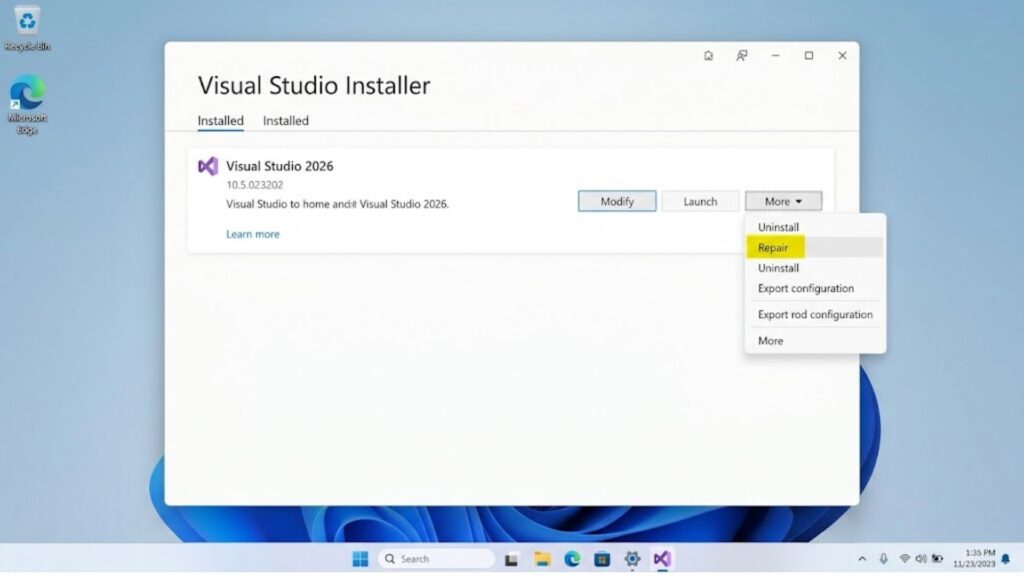
- Open the Visual Studio Installer.
- Click More > Repair on your Visual Studio 2026 installation.
Repair restores the default UI profile without removing extensions or workloads. After the repair finishes, open Visual Studio once, run Window > Reset Window Layout, then re-apply any saved custom layout.
This step also clears corrupted window-state files that occasionally survive a normal reset.
What Changed Beyond the Layout in Visual Studio 2026
Once the windows sit where you expect, the rest of Visual Studio 2026 becomes far more usable. Solution load time, startup performance, and UI hang reduction improved on large solutions, with additional ARM64 optimization for newer hardware. Numbered document tab shortcuts make switching files faster.
AI-assisted coding is now deeper. Adaptive paste and context-aware suggestions appear as you work, while the thinking effort dial and model picker let you control how much reasoning GitHub Copilot applies. This helps manage costs when you use Bring Your Own Key or local models. Agent Mode supports multi-file edits, a refactoring agent, the WinForms Expert Agent, and a code action context menu that surfaces useful fixes without leaving the editor.
Pull request integration now lets you review changes without checking out the branch, and auto-merge options sit alongside Azure DevOps integration. Hot Reload, Podman container debugging, code coverage, the BenchmarkDotNet template, Mermaid chart rendering, and stronger IntelliSense round out the daily tooling. Theme color customization gives more control over the Fluent UI look.
Most of the 4,000-plus extensions that worked in Visual Studio 2022 continue to work without modification thanks to extension compatibility. These improvements shipped as part of the general availability (GA) release and continue through the developer feedback loop that shapes both Stable and Insiders builds.
Visual Studio 2026 Insiders vs Stable
If you want the newest AI improvements earlier, switch to the Insiders Channel. Microsoft retired the old Preview Channel when Visual Studio 2026 Insiders launched. Insiders receives monthly updates that include experimental agent features and UI tweaks before they reach Stable. Most developers stay on Stable for daily work and keep a second Insiders installation for testing.
You can run both side-by-side. The Visual Studio Installer makes the channel switch straightforward.
How Visual Studio 2026 Layout Reset Compares to VS Code and Cursor
Visual Studio 2026 gives you a true one-click full reset (Window > Reset Window Layout) and native named layouts you can switch between. VS Code and Cursor remember the last state but lack an equivalent single-command reset of every tool window. If you frequently re-arrange panels after an upgrade or between tasks, the Visual Studio approach is more deliberate.
Next Steps
Open Visual Studio 2026, run the one-click reset, save a clean layout, and then explore the new AI controls. The layout friction disappears in under two minutes. After that the real gains—faster solution load times, agent mode, and better control over Copilot—become the daily experience.
If you maintain older .NET Framework projects or rely on extensions that have not yet been updated, keep Visual Studio 2022 installed alongside. Side-by-side installation remains fully supported until every critical extension confirms compatibility.
If you are also evaluating other AI coding tools, the practical differences between Visual Studio 2026 agent mode and the workflows in tools like Cursor become clearer once your IDE itself is no longer fighting you. For a deeper look at the AI side, see our Visual Studio 2026 agent mode guide.
Still stuck with a stubborn layout issue or want help choosing the right AI coding setup for your team?
Reach out to us directly we reply to every message. Contact us at aiblitzo.com
Frequently Asked Questions
How do I reset the window layout in Visual Studio 2026?
Go to Window > Reset Window Layout and confirm. This restores every tool window and toolbar to the current default.
Does the layout reset work on Visual Studio 2026 Insiders?
Yes. The same command works on both Stable and Insiders channels.
Will resetting the layout delete my extensions or settings?
No. It only resets window positions and docking. Extensions, workloads, and most other settings stay intact.
Can I save my own layout after resetting?
Yes. After the reset, arrange the windows the way you prefer, then use Window > Save Window Layout and give it a name.
Why did my panels move after upgrading to Visual Studio 2026?
The Fluent UI redesign changed several default panel positions. This is expected behavior and is fixed with the reset command.

2 Comments
Pingback: Voicemail Transcription: 3 Free AI Methods You must know
Pingback: Micro1 AI Interview: 5 Mistakes That Kill Your Chances