
Quick answer: A photo editor online is a free browser tool that edits pictures without installing software. Canva suits social posts, Photopea suits layered PSD work, Pixlr suits quick AI fixes, Fotor suits one-click enhancements, and Adobe Express suits brand designs. All five offer free plans, and paid plans start at $1.99 a month.
You can edit a photo in your browser in minutes, and you do not need Photoshop or a paid subscription. A photo editor online runs entirely in a tab, so you upload a picture, edit it, and download the result. This guide compares the five best free options.
Most people only need three things: a quick crop, a light and color fix, and a clean export. However, free plans differ: some add watermarks, some limit exports, and some lock AI tools behind a paywall. This guide tests each tool against the same jobs and names the catch in every free plan.
What Is a Photo Editor Online?
A photo editor online is image editing software that runs in your browser instead of an installed app. You open the site, upload a photo, and use sliders, filters, layers, or AI tools to change it, then you download the finished file. Nothing installs, so the same editor works on Windows, Mac, and Chromebook.
Browser editors suit quick jobs and social content, while Photoshop still wins for print work. For example, a small business owner who needs a clean product photo will finish faster in a browser editor. If the photo is blurry, an AI image enhancer can sharpen it first.
The 5 Best Photo Editor Online Tools at a Glance
These five editors cover every common job, and each one offers a free plan you can use today.
| Tool | Free plan | Paid plan from | Best for |
|---|---|---|---|
| Canva | Yes, 5 GB storage | Pro $18/mo or $144/yr | Social posts and templates |
| Photopea | Yes, full editor with ads | Premium $5/mo | Layered PSD editing |
| Pixlr | Yes, with ads | Plus $2.49/mo | Quick AI fixes |
| Fotor | Yes, limited AI credits | Pro $8.99/mo* | One-click enhancements |
| Adobe Express | Yes, standard tools | Premium $9.99/mo | Brand-ready designs |
*Fotor Pro price from pricing trackers checked in November 2026; its own page now shows credit-based plans.
Canva: Best Photo Editor Online for Social Posts
Canva is the easiest pick when a photo needs to become a finished post, flyer, or thumbnail. Its photo editor handles crop, filters, background removal, and Magic Edit. As a result, you can edit a photo and drop it into a post without opening a second app. The free plan covers basic editing.
Pro costs $18 a month, or $144 a year, per Canva’s pricing page. That price is fair if you design every week, but steep for occasional edits. Start free, and upgrade only when a Pro feature saves you real time.
Photopea: Best Free Photoshop Alternative in a Browser
Photopea is the closest thing to Photoshop in a browser tab. It opens PSD files with layers intact, plus masks, adjustment layers, and RAW files. It runs fully on your device, so your files never upload to a server. Every editing feature is free, and Premium at $5 a month only removes the ads. Details are on Photopea’s official site.
The catch is the learning curve: Photopea assumes you know a pro editor, so beginners can feel lost. However, if you use Photoshop shortcuts, you will feel at home in minutes. It suits designers who receive PSD files and want full control without a subscription.
Pixlr: Best Photo Editor Online for Quick AI Fixes
Pixlr gives you two editors in one tab: Express for one-click fixes and Editor for layered work. Its AI tools cover background removal, object removal, and sharpening, and the free plan needs no account. Pixlr’s official pricing page, checked 25 November 2026, lists Plus at $2.49 a month, or $1.99 billed yearly, and Premium at $9.99 a month, or $7.99 billed yearly.
Plus is the cheapest paid plan in this guide at $23.88 a year. It removes ads, unlocks unlimited saves, and adds 80 AI credits a month. The free plan shows ads and meters AI use, so heavy users will hit a limit. Pick Plus when the ads slow you down.
Fotor: Best Photo Editor Online for One-Click Enhancements
Fotor is built for speed. Its one-click enhance and batch edit tools suit beginners who want a better photo in seconds. The free plan covers basic edits and collages, while Pro adds AI batch editing and brand kits. Pricing trackers list Pro at $8.99 a month, or $3.33 billed yearly, but Fotor’s own page now sells credit-based plans.
Fotor’s AI features run on monthly credits, and the free plan gives you only a small allowance. As a result, it suits quick single-photo jobs better than heavy daily work. Batch editors can justify Pro with its AI batch edit tool.
Adobe Express: Best Photo Editor Online for Brand-Ready Designs
Adobe Express turns photos into on-brand designs with templates, Adobe fonts, and Firefly AI tools. Its free plan includes standard editing, background removal, and filters, while Premium unlocks the full template library and bulk tools. Premium costs $9.99 a month, per Adobe Express pricing, and students may have free access through school.
Express suits small teams who need every post to match a brand kit. It is lighter than Photoshop, however it is more structured than Canva, so brand control is the reason to pick it. For a quick crop, a simpler tool will finish faster.
How to Edit Photos Online in 5 Steps
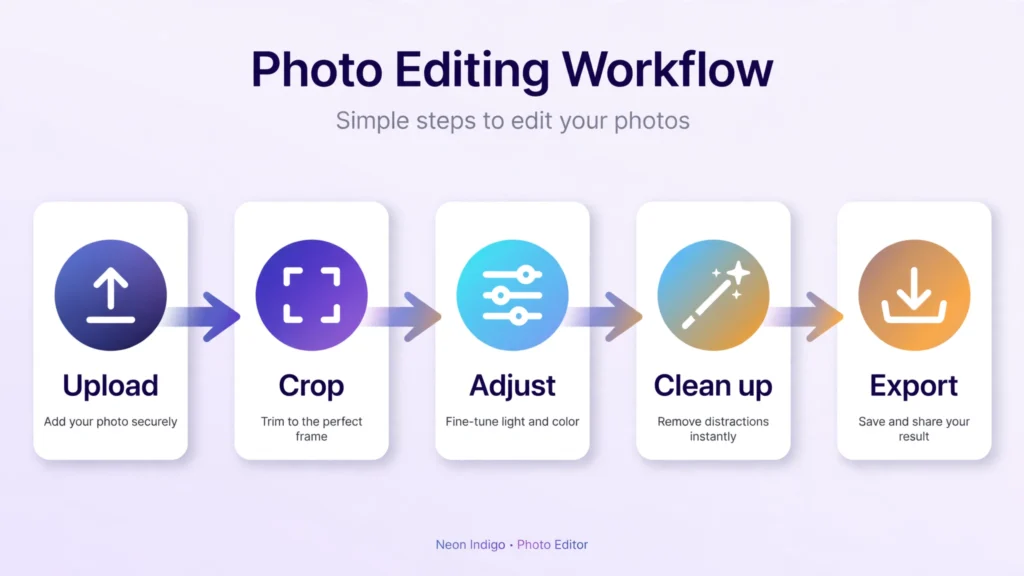
Follow these five steps for a clean result from any photo editor online. Crop first, so you never adjust pixels you will throw away.
Step 1: Upload and Crop First
Open your editor, upload the photo, and crop to the size you need first. Use a preset ratio such as 4:5 for Instagram or 16:9 for a website banner, and straighten a tilted horizon.
Step 2: Fix Light and Color
Start with auto-adjust, then fine-tune brightness, contrast, and saturation. Lower the effect if the result looks harsh, because most auto fixes overshoot. In addition, fix the subject and background separately when you can.
Step 3: Clean Up the Background
Remove a messy background before you add text. One-click removal works well on product shots and portraits, while a manual brush suits busy scenes. Check the edges at full zoom, because a rough cut looks worse than no cut.
Step 4: Add Text or a Design Layer
Add a short caption, a price, or a logo only after the photo looks right. Keep text short and high contrast, and never cover a face or key detail. For many sizes, use Magic Resize or bulk resize.
Step 5: Export at the Right Size
Export as JPG for photos and PNG for transparency or sharp text. Pick the right size: a 4000-pixel image slows a web page, and a 500-pixel image looks soft on a phone. Finally, keep the original file for later re-edits.
How We Tested These Photo Editors
We checked each editor on 25 November 2026 by opening its free plan, reading its official pricing page, and confirming its free-plan limits. We compared them the same way we compare AI models in our Perplexity vs Claude guide: the same checklist, no favorites, and no sponsored placement. Prices come from the official pages we opened today, plus pricing trackers checked in November 2026.
Our checklist covered five things: a free plan with no card, no watermark on basic exports, layers or templates, background removal, and clear pricing.
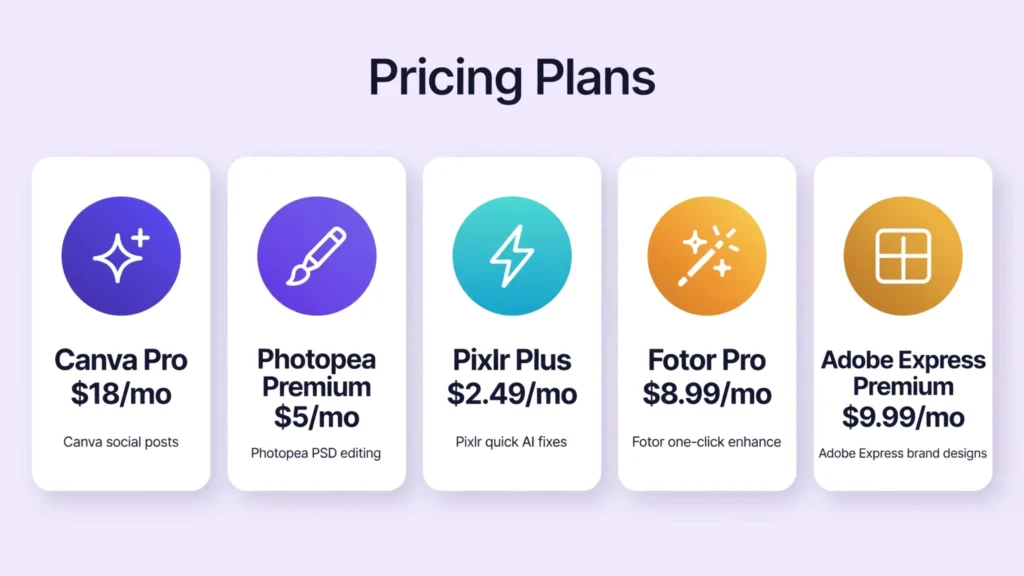
Photo Editor Online Pricing Compared
Free plans cover casual editing, but paid plans remove ads and unlock AI tools. The table shows the cheapest paid tier for each tool and its cost over a full year.
| Tool | Cheapest paid plan | Yearly cost |
|---|---|---|
| Canva Pro | $18/mo | $144/yr |
| Photopea Premium | $5/mo | $60/yr |
| Pixlr Plus | $2.49/mo | $23.88/yr |
| Fotor Pro | $8.99/mo | $39.96/yr* |
| Adobe Express Premium | $9.99/mo | $119.88/yr |
All five paid plans together cost $387.72 a year, while all five free plans cost $0. So start free, and pay for one tool only when a feature saves you time every week. Pixlr Plus is the cheapest upgrade at $23.88 a year.
Free Editing Software or a Paid Plan: When to Pay
Stay on a free plan when you edit a few photos a month, because every tool above handles basic edits at $0. Pay when a limit blocks your work: ads, AI credits that run out, or a watermark on exports. Several of these tools also edit video, so a video editor online may already be in your pocket. For longer projects, however, the best free video editing software is a dedicated video app, because timeline editing needs tools a photo editor does not offer. Match the plan to your volume, not to the feature list.
Real-World Application and Pitfalls
Take a shop owner who photographs 40 products. She uses Canva’s free plan to remove backgrounds, crop to square, and export the set in one afternoon. She upgrades to Pro only when Magic Resize saves her an hour a week. That is the right order: prove the workflow free, then pay for the feature that saves time. Our small business apps guide lists the apps that pair well with a photo editor online.
Watch for four pitfalls. First, some free plans add a watermark, so check a test export first. Second, most tools upload your photos to a vendor server, except Photopea, which edits locally. Third, AI credits run out fast, so batch your AI jobs. Fourth, templates can make every post look the same. AI business solutions face the same traps, so set one shared template first.
Frequently Asked Questions
How to edit photos for free?
Open a free photo editor online such as Canva, Photopea, or Pixlr, and use the free tools for crop, adjust, and filters. You need no card, and you can export a finished JPG without paying.
How can you edit photos without installing software?
Use a browser editor. Photopea, Pixlr, Canva, Fotor, and Adobe Express all run in a tab on Windows, Mac, and Chromebook. You upload a photo, edit it, and download the result. Nothing installs.
How to edit a photo on your phone browser?
Open the editor in your phone browser, upload the photo, and use the touch controls for crop and adjust. Canva and Pixlr work well on mobile, while Photopea suits a larger screen.
How to edit pictures for social media?
Crop to the platform ratio first, such as 4:5 for Instagram or 9:16 for stories, then fix light and color, and export as JPG. Use the same filter at low intensity across posts, so your feed looks consistent.
How to edit a picture for a product listing?
Remove the background, crop to square, and brighten the product so it stands out on white. Keep the image sharp and export at least 1500 pixels wide, because marketplaces downscale small images.
Final Verdict: Which Photo Editor Online Should You Pick?
Pick Canva for posts, Photopea for layers and PSD files, Pixlr for the cheapest paid plan, Fotor for one-click fixes, and Adobe Express for brand control. All five are free, so try two on the same photo today and keep the faster one. Teams can also learn how to create an AI agent for routine edits and posting. A photo editor online should save you time, not add a subscription, so start free and pay only for the feature that earns its price.